We have introduced Jira as a native integration in Workflows. Customer-facing automations can now react when new issues are created or existing issues are updated in Jira — and drive Jira back the other way with a broad set of issue-lifecycle actions: create, update, link, comment, watch, attach files, log work, and move to sprint.
The integration ships with two triggers and eleven actions. Authentication is OAuth, preceded by a friendly Name and Email label. Actions and triggers include a Cloud Site selector so a single connected Atlassian account can target the correct Jira Cloud site even when the user has access to more than one.
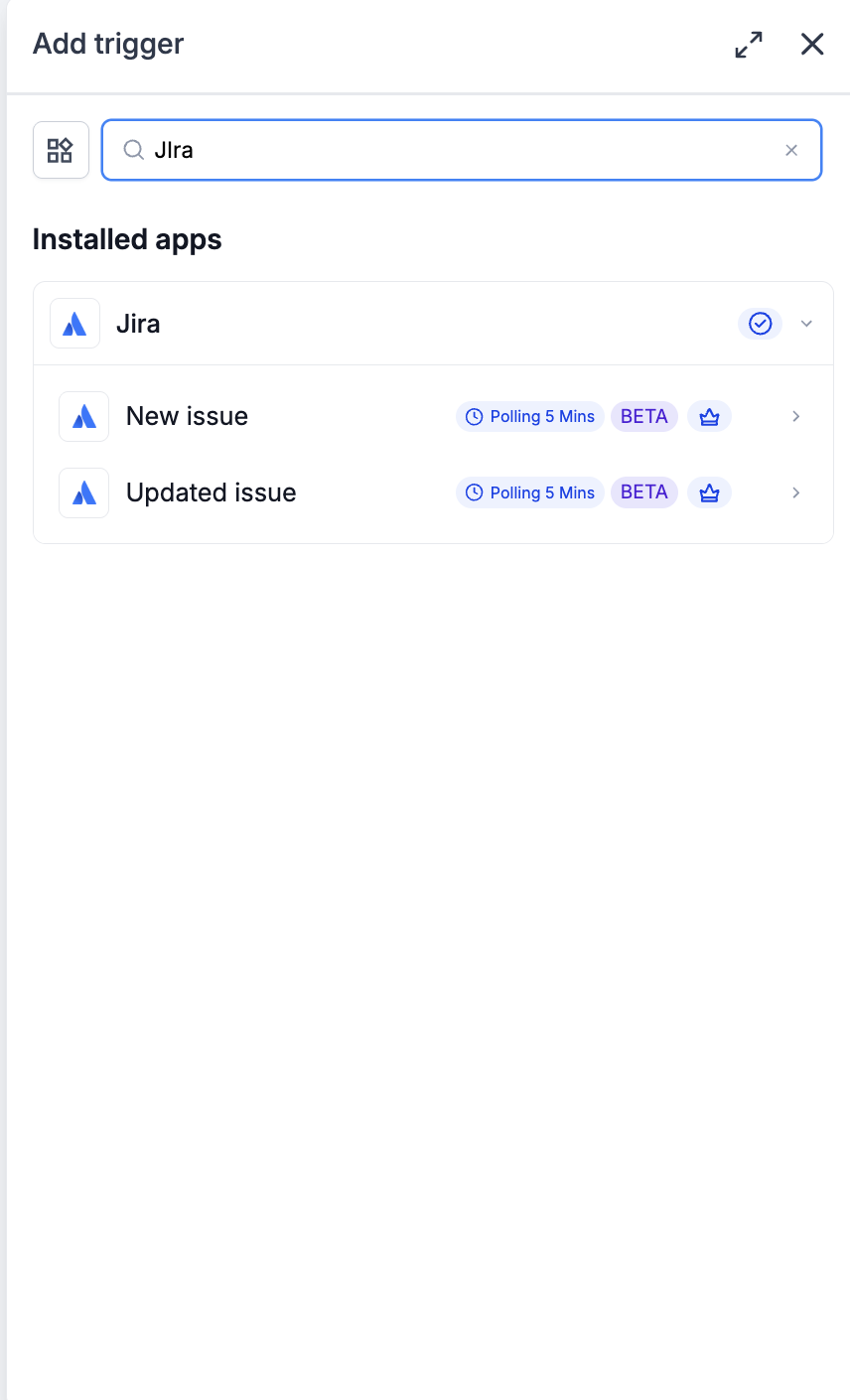
Triggers (Jira → Workflows)
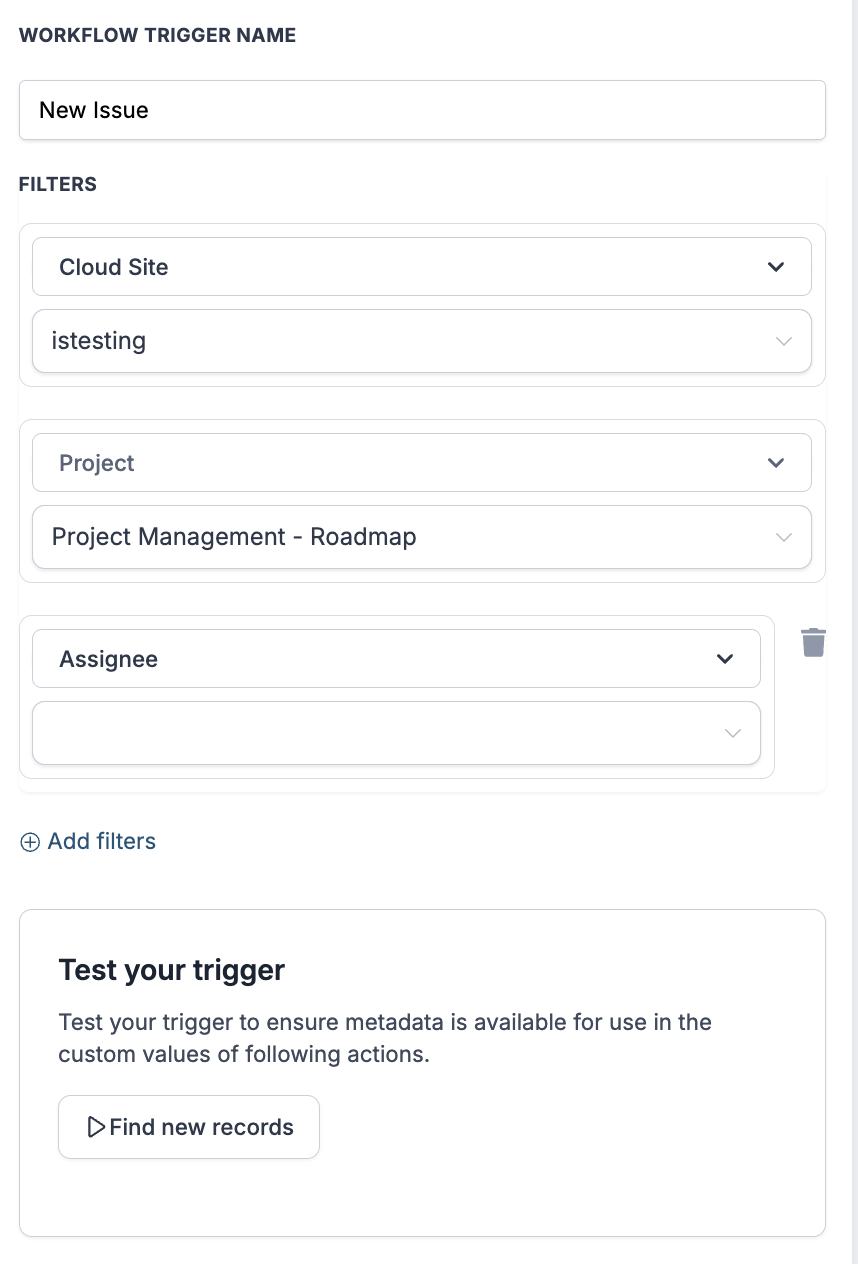
New issue
Updated issue
Actions (Workflows → Jira)
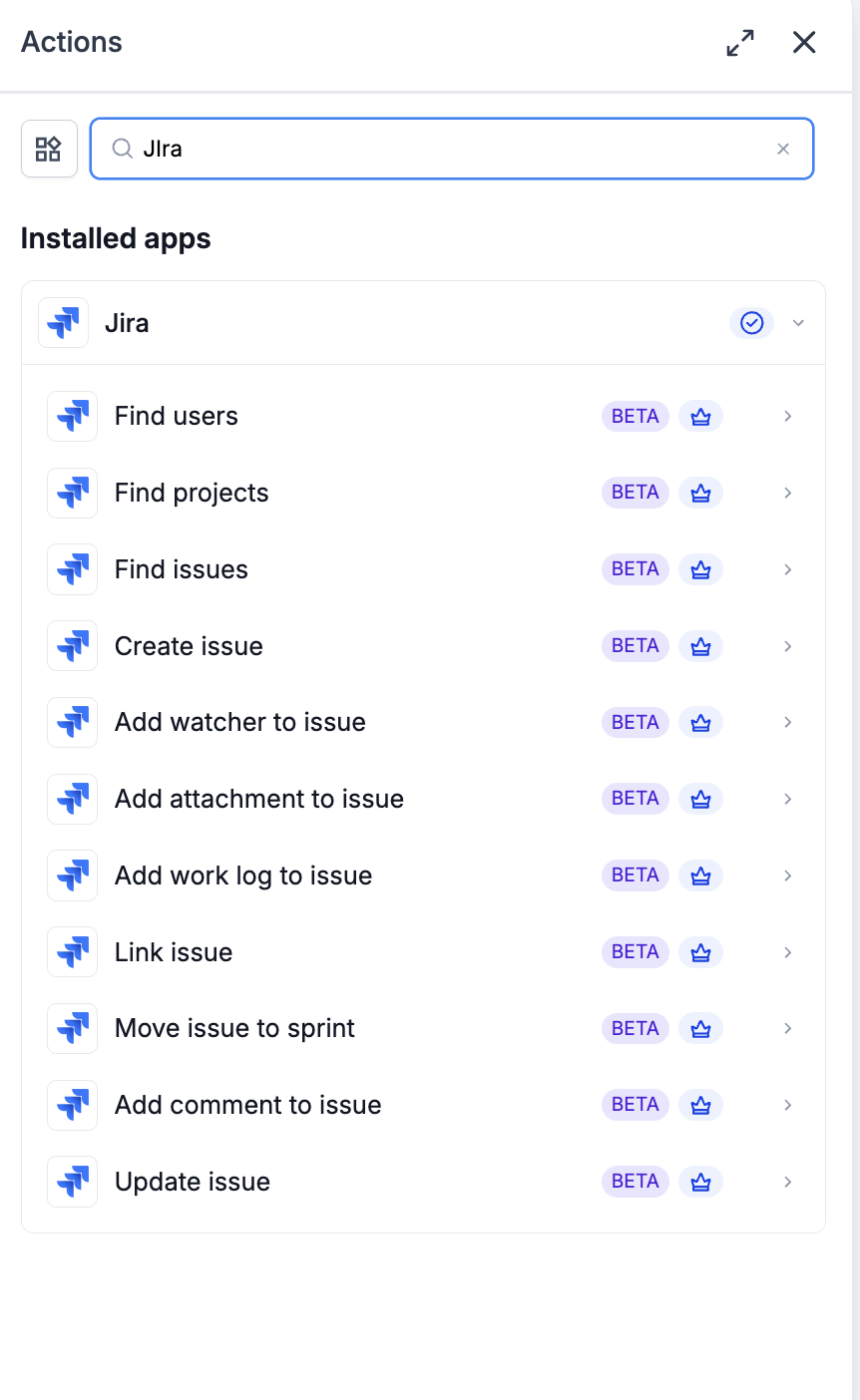
Discovery
- Find users
- Find projects
- Find issues
- Issue Creation and Updates
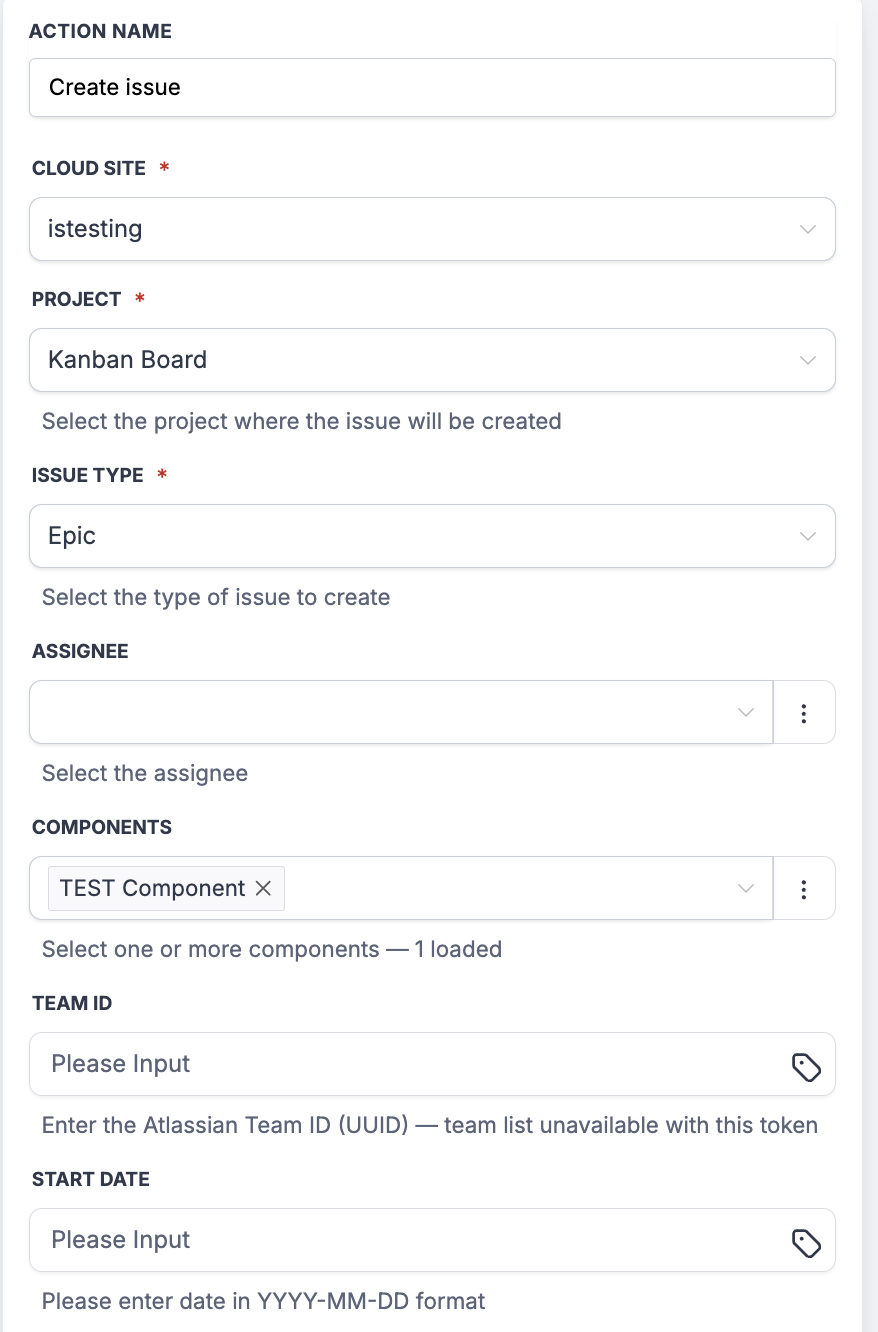
- Create issue
- Update issue
- Issue Enrichment
- Add comment to issue
- Add watcher to issue
- Add attachment to issue
- Add work log to issue
- Issue Relationships
- Link issue
- Move issue to sprint
Integration Setup
Connect Jira once via OAuth to begin using the triggers and actions across all workflows.
Steps
Open the Workflow Builder and add any Jira trigger or action.
On the panel, click Connect your account.
The External Authentication Configuration modal opens. Enter a friendly Name (e.g. Engineering Jira, Support Jira) and the Email associated with this Jira account. Click Continue.
You will be redirected to Atlassian’s authorization screen. Approve the requested Jira scopes.
You will be returned to the Workflow Builder; the panel will update to show Connected.
On any Jira trigger or action, pick the target Cloud Site that this step should read from or write to. Required on Create issue; a filter on the triggers.
Use Cases
Issue Resolved → Notify the Customer
Updated issue (status = Done) → Find contact → Send resolution message with the fix summary
An engineer flips an issue to Done in Jira.
Within 5 minutes, the workflow matches the issue back to the customer who reported it and sends a resolution notification with the fix summary.
Cross-Issue Linking on Shared Reports
New issue → Find issues (by shared reference) → Link issue (relates to or duplicates)
When a new issue is created with a shared external reference (support ticket ID, feature request ID), the workflow looks for existing Jira issues with the same reference and links them.
Reduces duplicate work and keeps related issues discoverable inside Jira.
Sample Screenshots
Was this article helpful?
That’s Great!
Thank you for your feedback
Sorry! We couldn't be helpful
Thank you for your feedback
Feedback sent
We appreciate your effort and will try to fix the article