Contacts now get notified the moment an admin shares a file with them through the Client Portal. Real-time notifications reach them across the Client Portal (Web) and the White Label mobile app — so newly shared documents never slip through the cracks. Contacts stay in control, too, and can manage these notifications right from their Client Portal preferences.
What's New
File Share Notifications for Contacts
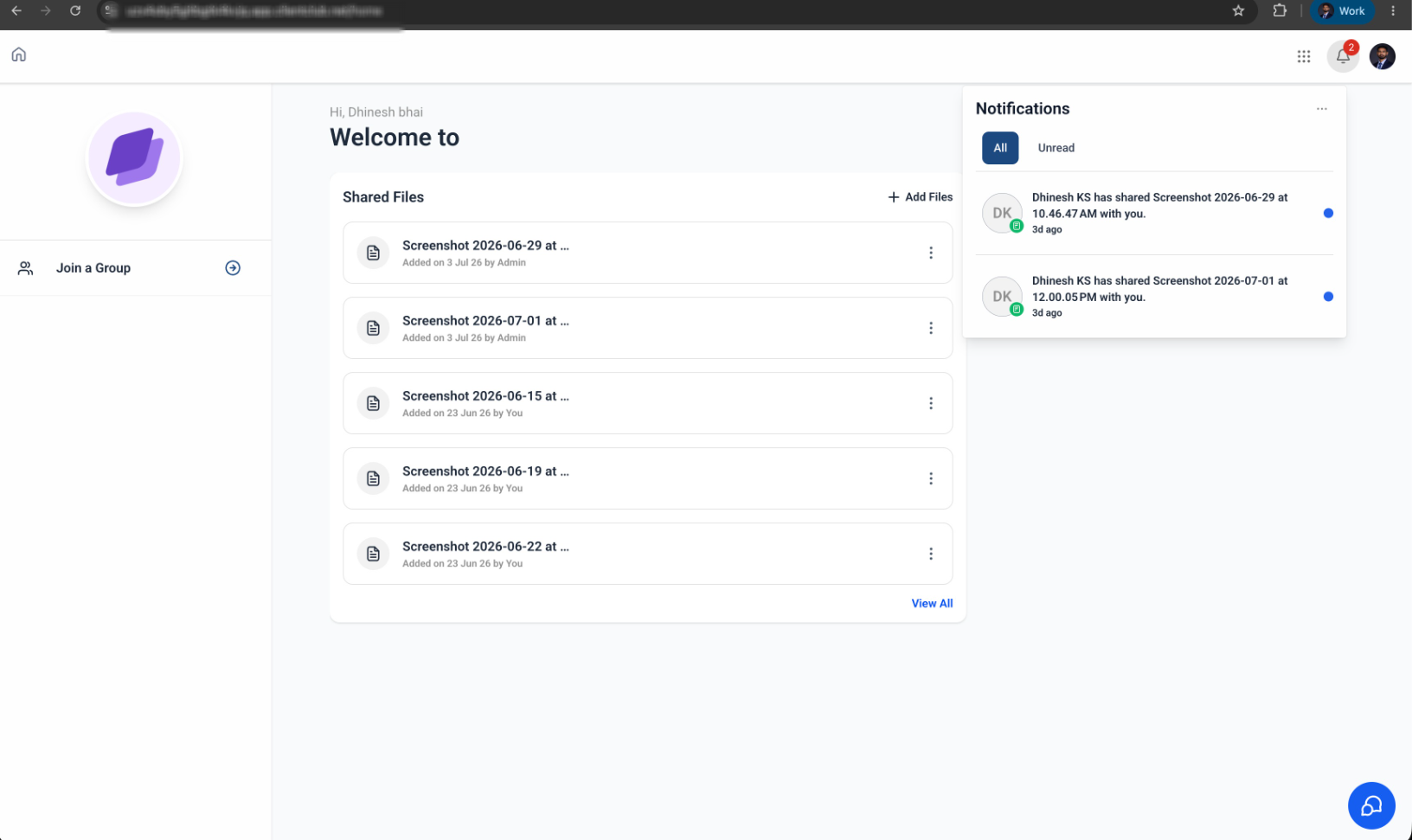
When an admin shares a file with a contact through the Client Portal, the contact automatically receives a notification letting them know a new file is available.
Manage Notification Preferences
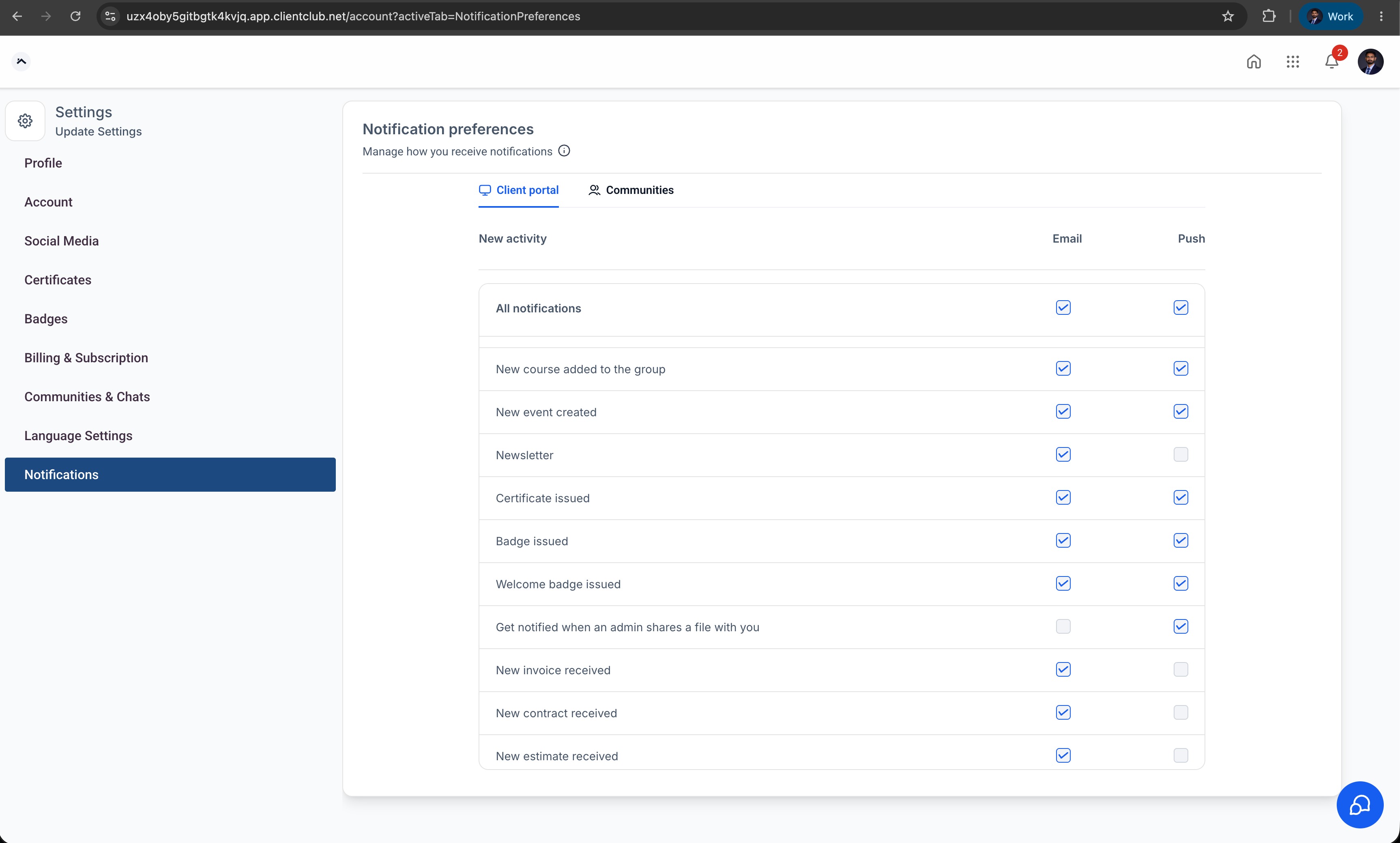
Contacts can decide whether to receive notifications for shared files by updating their notification preferences within the Client Portal.
Available Across Platforms File share notifications are supported on:
- Client Portal (Web)
- White Label Mobile App
Improved Client Communication
Keep clients informed whenever important documents, contracts, invoices, or other files are shared — reducing missed updates and improving the overall client experience.
How to Use
Share a File with a Contact
- Navigate to a contact.
- Open the Files section from the right-side navigation panel.
- Upload or select a file.
- Enable the Upload to Client Portal option.
- Save the file.
Once the file is shared, the contact receives an in-app notification and, if enabled, a push notification.
Manage Notification Preferences (Client)
- Log in to the Client Portal.
- Navigate to Settings → Notification Preferences.
- Enable or disable In-app & Push Notifications.
- Save your preferences.
Why This Feature
Businesses frequently share important files with clients through the Client Portal, but previously clients had no automatic notification that a new document had been shared. With file share notifications, clients are immediately informed when new files become available — improving visibility, reducing missed communications, and creating a more seamless client experience.
Notes
- Notifications are triggered when an admin shares a file with a contact through the Client Portal.
- Contacts can manage notification preferences from the Client Portal settings.
- Supported notification channels: In-app Notifications and Push Notifications.
- Available on both the Client Portal (Web) and White Label Mobile App.
Was this article helpful?
That’s Great!
Thank you for your feedback
Sorry! We couldn't be helpful
Thank you for your feedback
Feedback sent
We appreciate your effort and will try to fix the article