Managing service bookings just got a whole lot easier! You can now fully edit
both paid and unpaid service appointments
without needing to cancel and recreate the booking. Whether your customer wants to add another service, change the assigned staff member, update add-ons, or apply a coupon after booking, you can make those changes seamlessly while keeping the booking, order, and payment information in sync.This has been one of our most requested Services enhancements, and we're excited to finally bring it to you!
What's New
Complete Booking Editing
- Edit both paid and unpaidservice bookings.
- Add or remove services from an existing appointment.
- Add, update, or remove add-ons.
- Change the assigned staff member.
- Apply, update, or remove coupons.
- Update appointment details without recreating the booking.
Automatic Payment Reconciliation
- Every edit automatically recalculates the booking total.
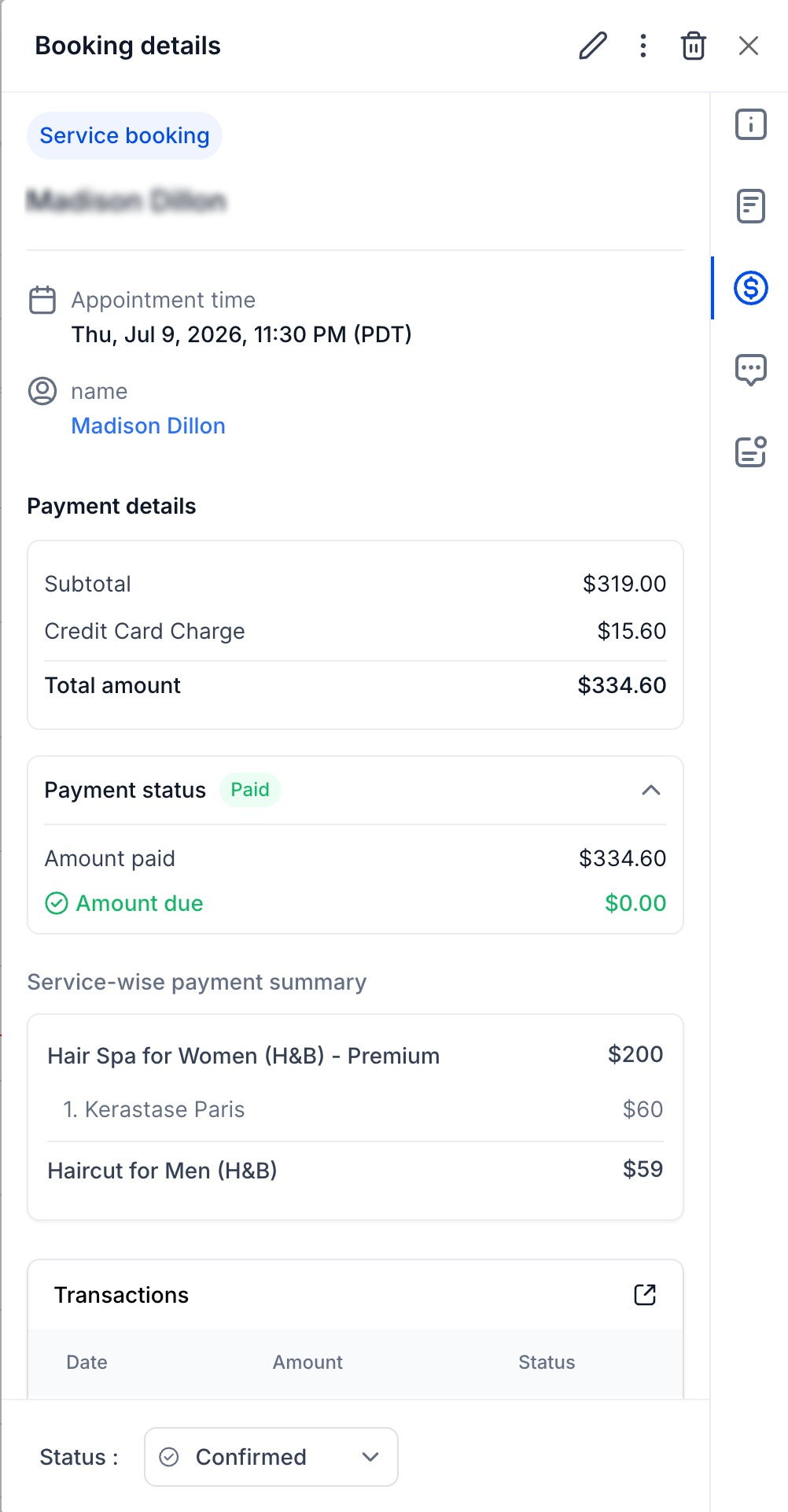
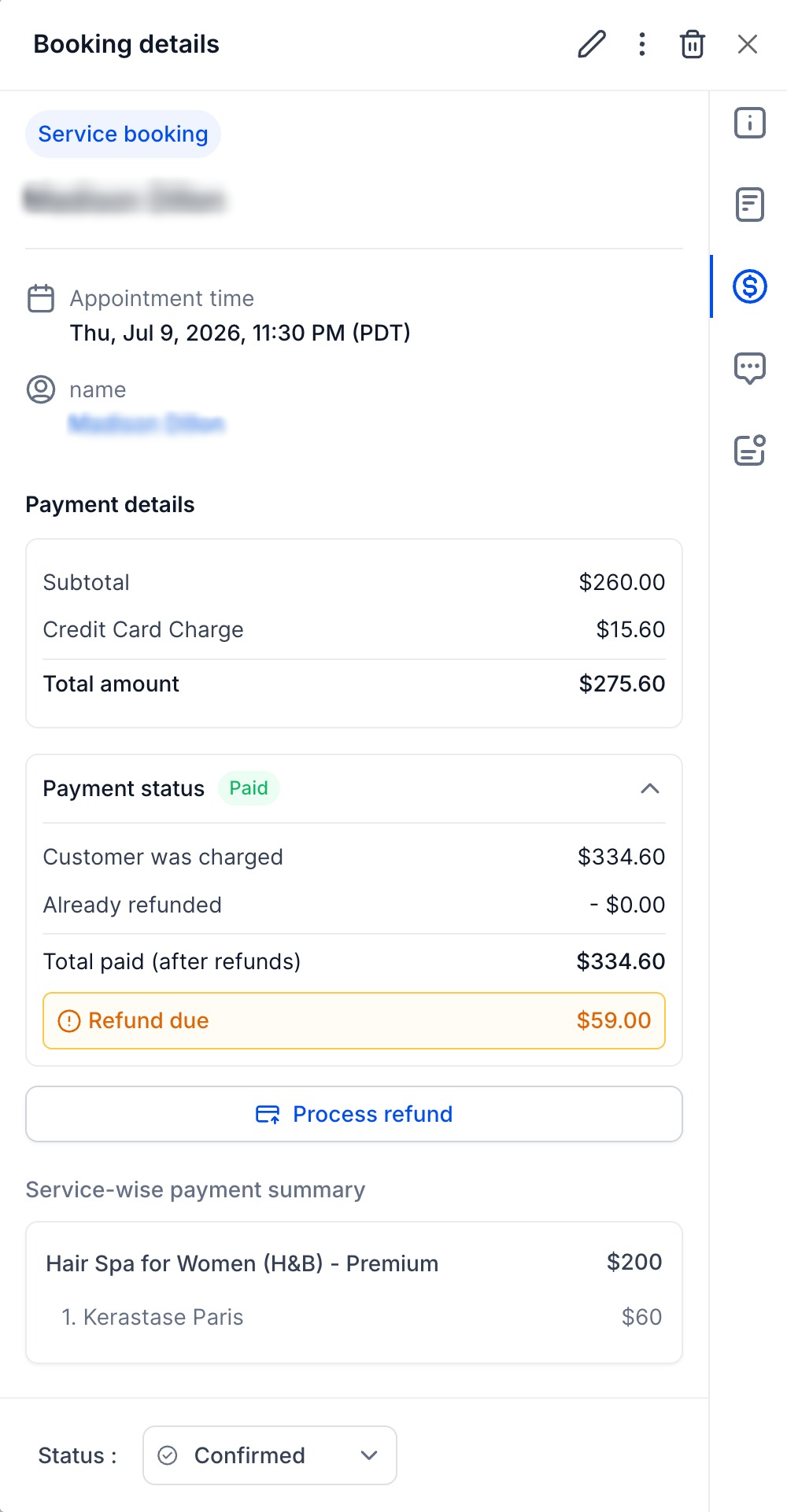
- The appointment always reflects the latest payment status, including: Additional payment required,Fully paidandRefund due.
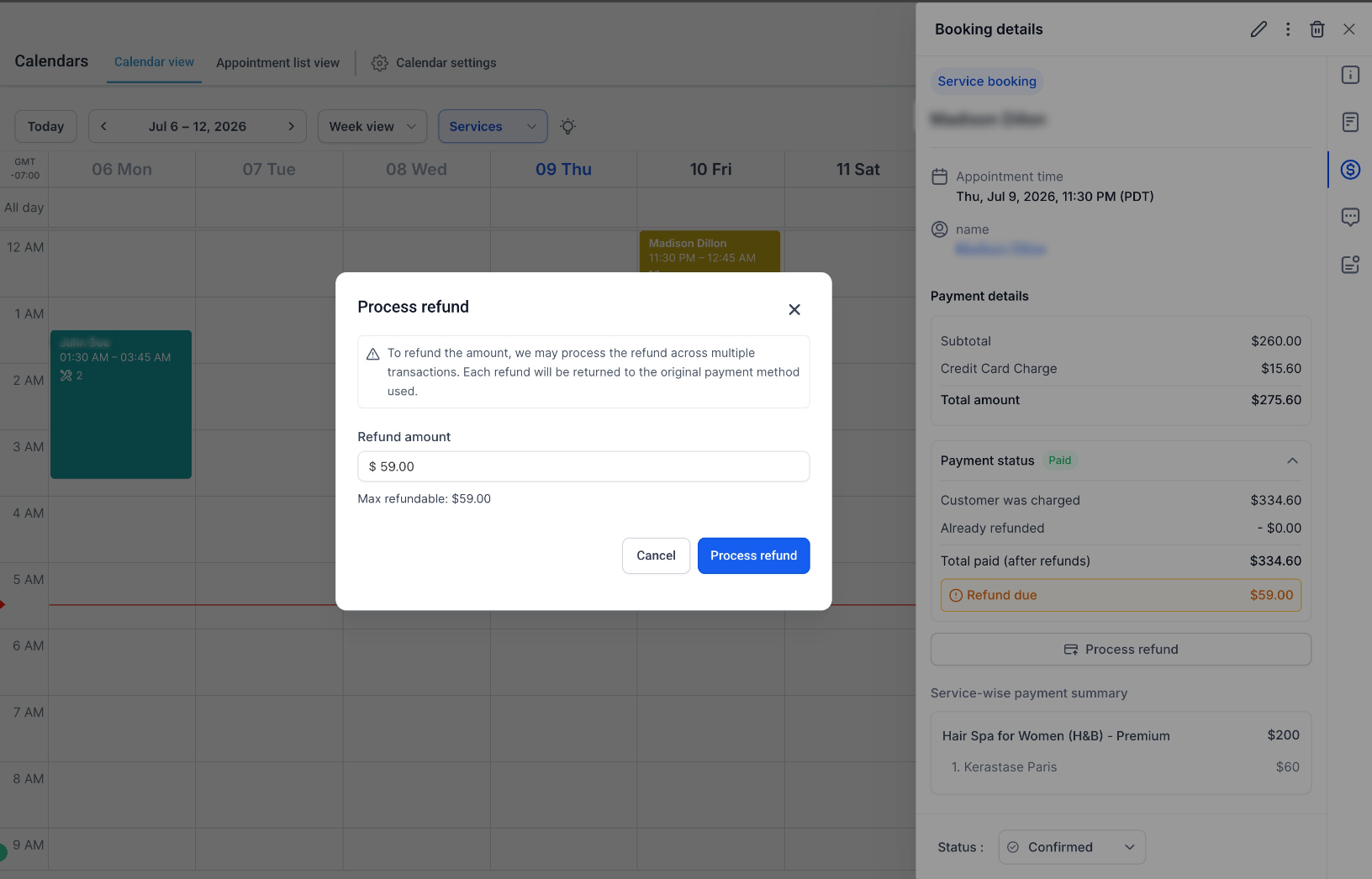
- If a refund is due, you can now process the refund directly from the appointment modal, making it quick and easy to settle payment differences without leaving the booking.
- If a refund has been initiated but is still being processed, editing will be temporarily disableduntil the refund is completed. During this time, you can stillreschedule the appointmentif needed.
- This ensures payment records remain accurate while preventing conflicts during refund processing.
Smarter Order Management
- Every service booking continues to be linked to its associated order.
- When a booking is edited, the existing order is updatedinstead of creating a brand-new order.
- This keeps your order history clean while ensuring payments, services, and booking details always stay in sync.
Mobile App Support
- Support for editing service bookings on the mobile app is complete and is scheduled to roll out during the week of July 20th.
How to Use
- Open an existing Service Booking.
- Click Edit.
- Make any required changes, including:
- Add or remove services
- Modify add-ons
- Change the assigned staff member
- Apply or remove coupons
- Update other booking details
- Save your changes.
- Review the updated payment status to see whether additional payment is required, the booking is fully paid, or a refund is due. If applicable, process the refund directly from the appointment modal.
Why This Matters
- Edit bookings without canceling and recreating appointments.
- Easily accommodate customer requests after a booking has been made.
- Keep payments, orders, and appointment details synchronized automatically.
- Maintain a single order throughout the booking lifecycle for cleaner records and easier reconciliation.
- Save staff time while providing a more flexible experience for your customers.
Was this article helpful?
That’s Great!
Thank you for your feedback
Sorry! We couldn't be helpful
Thank you for your feedback
Feedback sent
We appreciate your effort and will try to fix the article