Learn how to send leads directly to your CRM or export them as a CSV file for offline use and additional processing.
Overview
Once your leads are ready, you can:
- Send leads directly to your connected CRM
- Choose how many contact emails to include
- Export leads as a CSV file
- Download and save lead data locally
Step 1: Select Your Leads
- Open your lead list.
- Highlight or select the leads you want to process.
After selecting leads, a toolbar will appear at the top of the page with additional actions.
Step 2: Choose the Number of Emails to Include
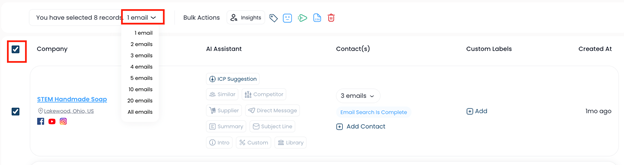
- Locate the Email dropdown menu in the toolbar.
- Click the dropdown.
You will see options such as:
- 1 Email
- 2 Emails
- 3 Emails
- Up to all available emails
Select the amount of contact information you want included.
Example:
If you choose 3 Emails, the system will include up to three contact emails per company.
Step 3: Send Leads to Your CRM
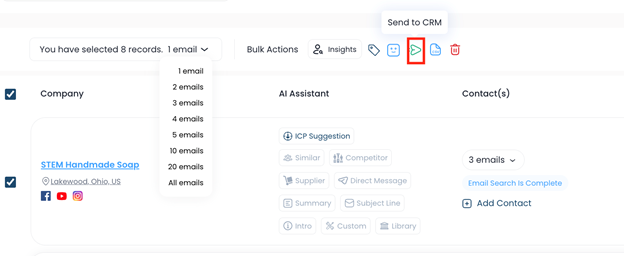
- After selecting your email preference, click Send to CRM.
- A list of connected CRM platforms will appear.
- Select the CRM you want to send leads to.
The system will begin processing and transferring your leads.
Note: Processing may take a few moments while the transfer runs in the background.
Step 4: View Leads Again After Sending
After the leads are successfully sent, you may notice that they no longer appear in your current list view.
To display them again:
- Locate the Status filter.
- Click the dropdown menu.
- Select All.
Your leads should reappear in the list.
Step 5: Export Leads to a CSV File
To save leads locally:
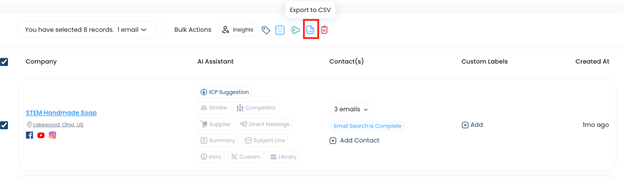
- Select the leads you want to export.
- Click the Export CSV option from the toolbar.
- Wait for the file to download automatically.
The CSV file will be saved directly to your computer.
You can then:
- Upload it to another system
- Store it locally
- Import it into other tools
- Use it for additional processing
This workflow allows you to quickly move leads into your CRM or export them for use in other platforms and processes.
Was this article helpful?
That’s Great!
Thank you for your feedback
Sorry! We couldn't be helpful
Thank you for your feedback
Feedback sent
We appreciate your effort and will try to fix the article