Learn how to interpret search result columns, including Company, AI Assistant, Contacts, Custom Labels, and Created At, to optimize outreach and maximize insights for your sales strategy.
Overview
The Lead Generation Tool search results provide detailed information in several key columns that help you make informed sales decisions. This guide explains each column—Company, AI Assistant, Contacts, Custom Labels, and Created At—and how to leverage them for outreach and strategy.
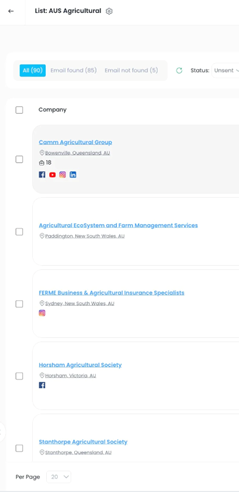
Step 1: Company Column
- Displays the company name, address, and sometimes additional data like:
- Employee count
- Google reviews
- Social media handles
- Use this to get a high-level view of the company before outreach
Step 2: AI Assistant Column
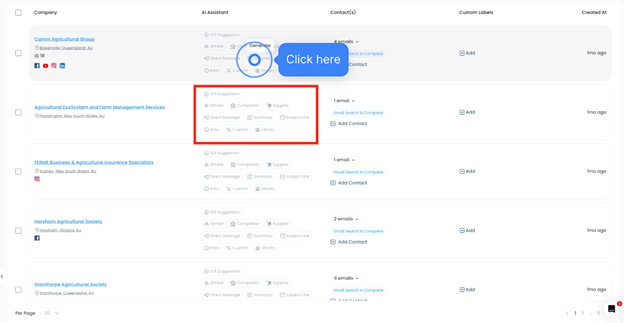
- Contains prompts that you can generate per company.
- Examples include:
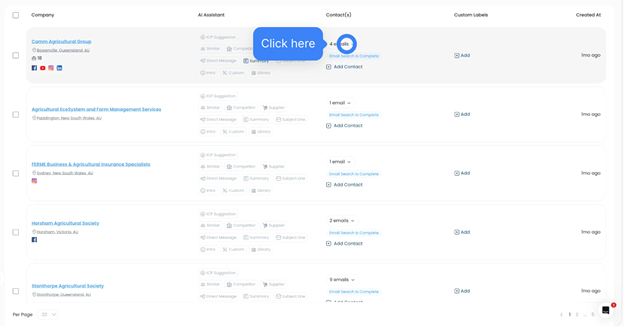
- Summary: Overview of company, services, employee count, and how your account can provide solutions
- You can create custom prompts or select from the prompt library for tailored insights
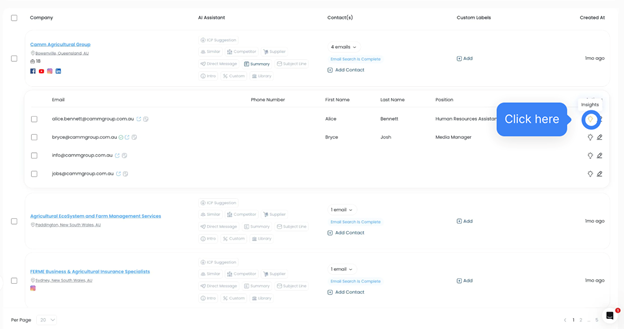
Step 3: Contacts Column
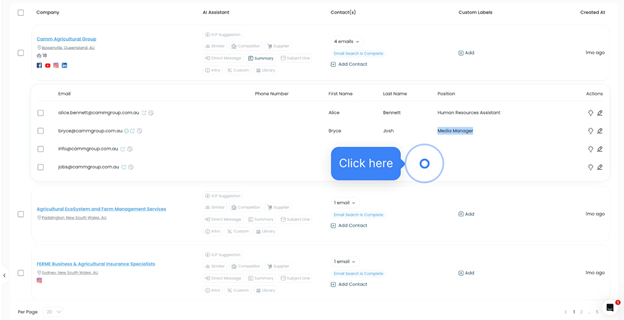
- Shows individual contacts within the company
- Information includes:
- Name
- Phone number
- Additional actions and insights can be generated using extra credits
- Use the yellow light bulb icon to access further contact details like LinkedIn and job history
- Reminder: Local searches only deduct credits for emails produced for the business; additional contacts are free unless enhanced
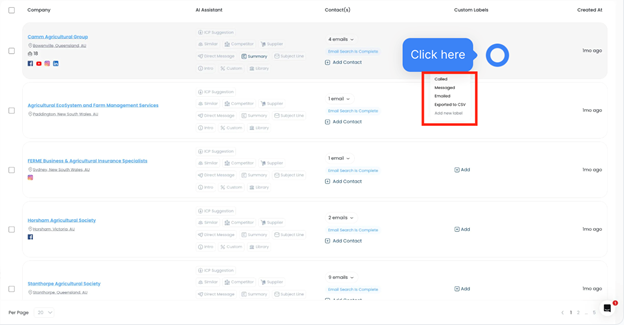
Step 4: Custom Labels Column
- Allows you to categorize or track contacts and companies
- Examples:
- Called
- Exported to CSV
- Priority Lead
- Helps organize and manage outreach workflow
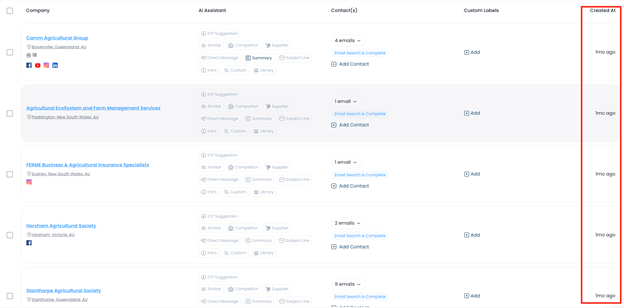
Step 5: Created At Column
- Displays the date when the contact or company was added to your list
- Useful for tracking when leads were generated and managing follow-up timing
Best Practices
- Review all columns to fully understand your prospects
- Utilize AI Assistant summaries before outreach for personalized engagement
- Apply custom labels to track progress and segment leads
- Use Created At to manage timely follow-ups
Was this article helpful?
That’s Great!
Thank you for your feedback
Sorry! We couldn't be helpful
Thank you for your feedback
Feedback sent
We appreciate your effort and will try to fix the article