Learn how to build and publish your first AI Agent in the Lead Generation Tool. Automate tasks like generating summaries, sending direct messages, and syncing leads to your CRM for faster, efficient prospecting.
Overview
The Lead Generation Tool's AI Agents automate prospecting tasks, such as generating summaries, direct messages, and syncing leads to your CRM. Building an AI agent saves time, reduces manual work, and ensures consistent outreach.
Step-by-Step: Building Your First AI Agent
Step 1: Navigate to AI Agents
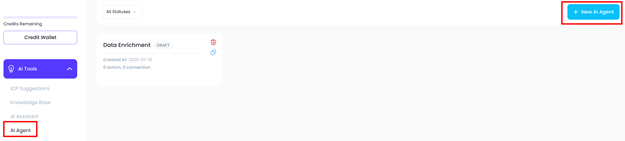
- Go to AI Tools → AI Agents in your Lead Generation Tool dashboard.
- Click New Agent.
Step 2: Name and Describe Your Agent
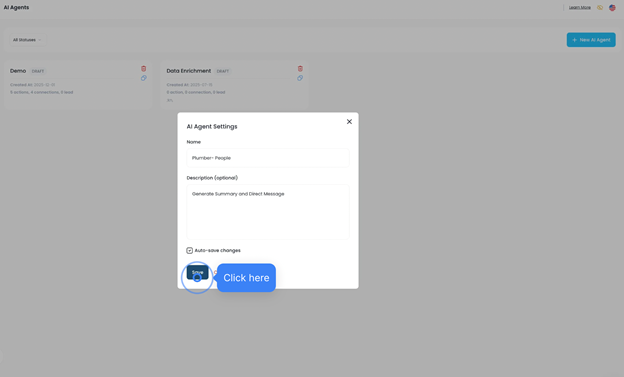
- Enter a name for your AI agent (e.g., Plumber People).
- Add a description outlining the AI agent’s tasks (e.g., generate summaries and direct messages).
Step 3: Enable Auto-Save
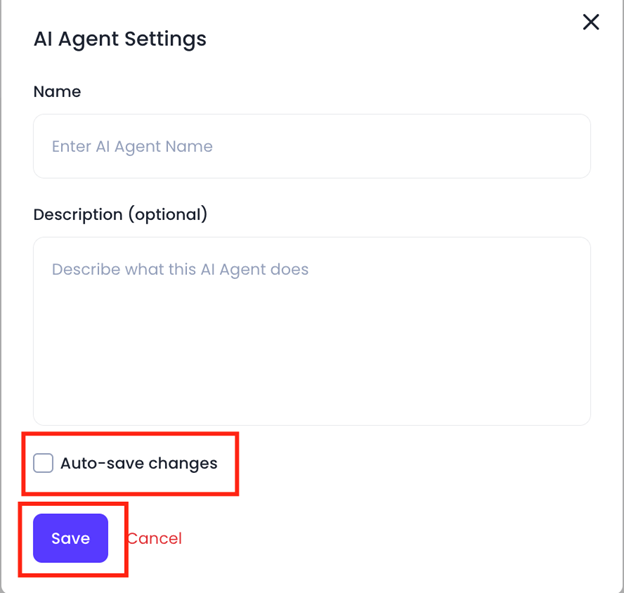
- Enable Auto-Save to prevent losing changes.
- Save changes before proceeding.
Step 4: Configure Wallet (Optional)
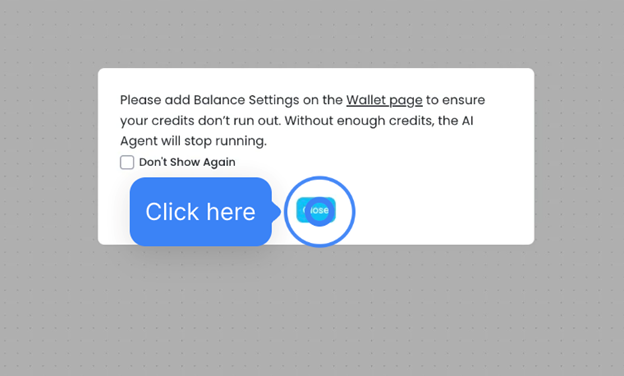
- If prompted, add a payment method on the Wallet page, or skip for later.
Step 5: Set AI Agent Trigger
- Navigate to the AI Builder map.
- Select a saved list for the AI agent (create a new list if needed).
- Set the trigger to "Whenever results are added to the list."
- Click Save.
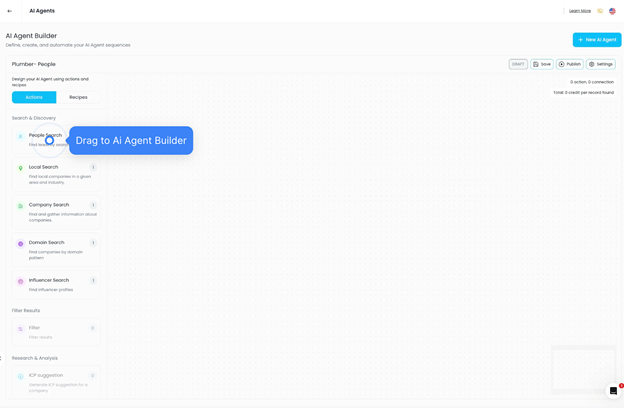
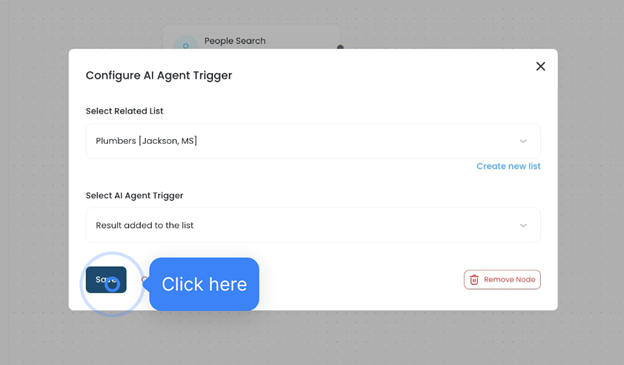
Step 6: Assign Tasks to the AI Agent
- Generate Summary
- Select the People Summary prompt.
- Save the task.
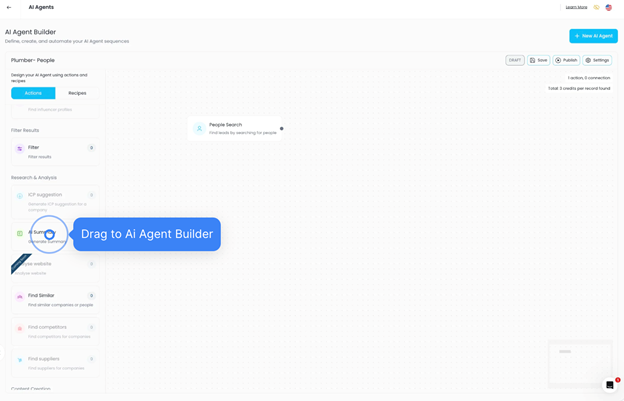
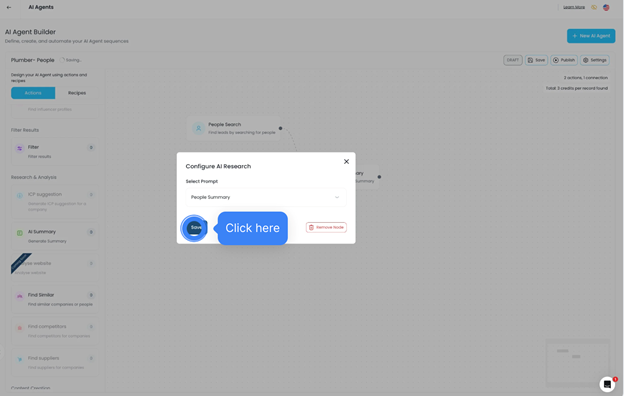
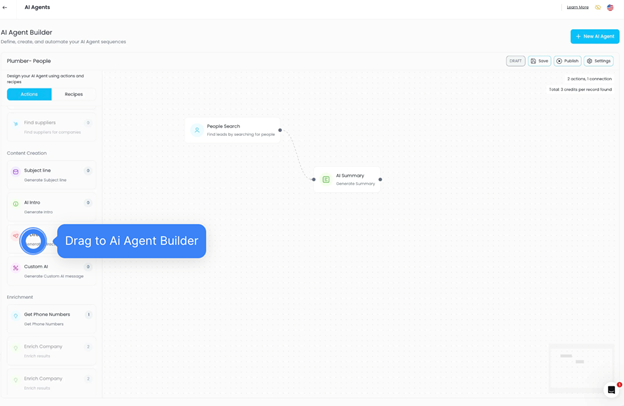
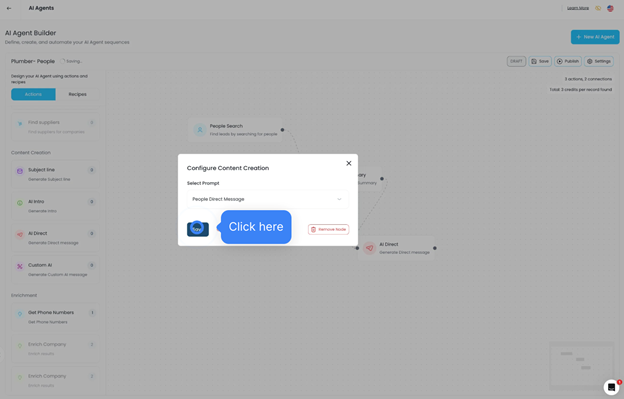
2. Create Direct Message
- Select AI Direct Message.
- Save the task.
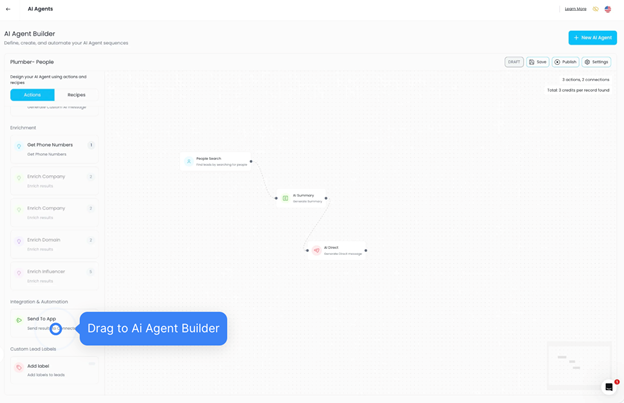
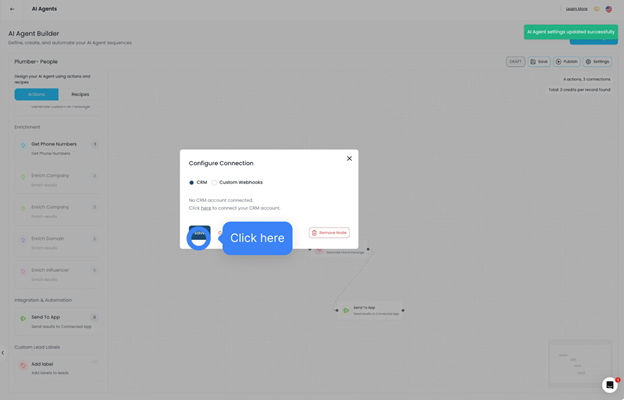
3. Send to CRM
- Configure CRM integration.
- Save the task.
Step 7: Save and Publish
- Review your AI agent’s trigger and tasks.
- Click Save if Auto-Save is not enabled.
- Click Publish to activate the AI agent.
- Confirm publishing when prompted.
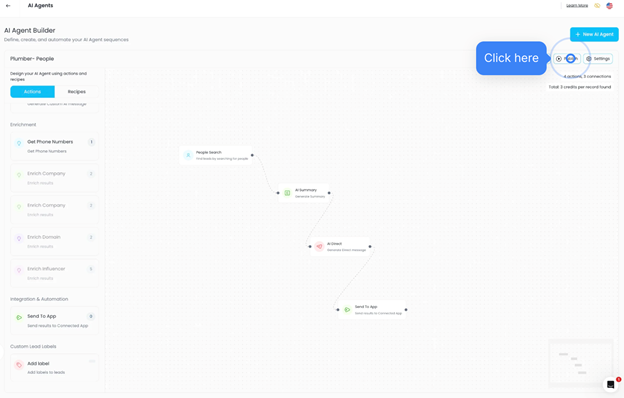
Step 8: Monitor
- Once published, your AI agent will automatically execute tasks when the trigger conditions are met.
- You can also view the last execution time of an AI Agent.
- Displays the most recent time the AI agent successfully ran
- Helps you monitor activity and confirm the agent is working as expected
- Useful for troubleshooting if tasks are not triggering or results are delayed
Was this article helpful?
That’s Great!
Thank you for your feedback
Sorry! We couldn't be helpful
Thank you for your feedback
Feedback sent
We appreciate your effort and will try to fix the article